A practical creator tool · Buzz
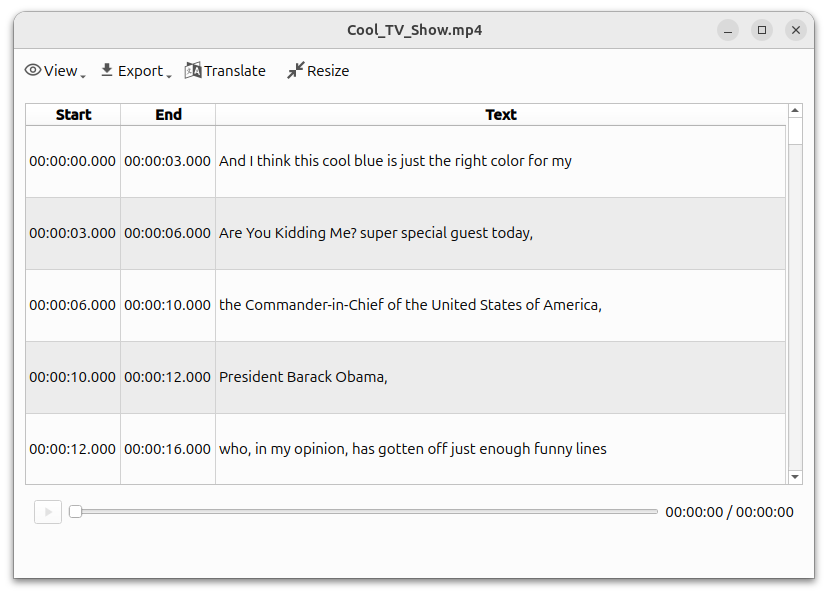
Turn your video into text and subtitles
Start with a transcript instead of typing every spoken word. Then correct names, terminology and wording yourself. Buzz is a new addition to this site’s tool library.
Source reviewed October 20, 2026 · 6186d09
Tap the image to view full size ↗
Where it helps
- Create an SRT or VTT file for an editor that supports subtitle imports.
- Extract an interview or voice-over transcript and review it before writing a summary or post.
- Search and review the text alongside playback rather than navigating a long recording without a reference.
From a clip to a subtitle file
Start with a short clip you have permission to use, with reasonably clear speech.
In Buzz choose File → Import Media File, or the + icon, and select your audio or video.
Choose Transcribe, the spoken language and a model suitable for your computer, then Run. Select SRT/VTT for subtitles or TXT for plain text in the export settings.
When complete, open the transcript and check names, numbers, dialect wording and timing. Import the subtitle file into your editor and adjust line breaks if needed.
Install for your computer
For beginners: choose the desktop app for your computer and follow the notes under your OS. This uses a graphical interface; Python is a separate advanced option at the end of this guide.
Download Buzz · choose your computer
For computers, not Android or iPhone. Links open the official source in a new tab; Windows and Mac require selecting a file from the list. Avoid download advertisements.
In the file list choose Windows-X64. If it is a ZIP, extract it first and open the app from its folder.
Choose ARM64 for Apple Silicon or X64 for Intel. The last Intel-compatible release is 1.4.5. Extract ZIP if supplied; open the DMG and drag the app to Applications.
Open Buzz on Flathub and follow Install. Set up Flatpak on your computer first as required by your distribution.
To identify your Mac: Apple menu → About This Mac; Chip means Apple Silicon, Processor Intel means Intel. Downloads can be large; use your computer and a suitable connection.
Official installation instructions ↗Limits to understand
- Accuracy is not guaranteed. Noise, dialect, recording quality and model choice affect results; selecting Arabic does not guarantee correct transcription of every dialect.
- Local use requires an initial model download and may be slow on weaker hardware. An external API changes where data goes and may cost money; check your configuration.
- A transcript is not a finished captioned video. SRT/VTT files need review and import into a compatible editor. We do not promise automatic translation into every language.
What did we verify?
This guide follows the upstream documentation and the linked source revision. We have not benchmarked transcription accuracy; start with a short clip and review the result to see how it handles your recordings.