A free guide by Moath Alherani
From an empty plot to your dream villa
A practical step-by-step guide to planning your villa and designing it in 3D.
Published and sources checked
- 600 sqm plot
- Two storeys
- 5 bedrooms
- Double height
- Infinity pool
- BBQ area
- Planter boxes
A concept plan, not a one-click construction drawing. Local setbacks, architectural approvals, structural design and pool hydraulics require qualified professional review.
The practical route
- 1. Planning and Maket
- 2. Export PDF or prepare PNG
- 3. Coohom, render and tour
For schematic planning and reviewed options. Free is limited to one floor; multi-floor generation and downloadable exports are paid.
Official pricingFor rebuilding the imported plan in 3D, furnishing, landscape concepts and presentation. Recognition needs scale checks and manual cleanup.
Check current account limitsBefore you begin
- Plot length, width, shape and surveyed boundaries.
- Location, municipal limits and verified setbacks. Never guess them.
- North, street direction, guest entrance, family entrance and parking access.
- Number of storeys, allowed footprint and target indoor area. Plot area is not floor area.
- Room requirements, privacy priorities, style and outdoor space to preserve.
Illustrative brief: a rectangular 20 × 30 m plot equals 600 sqm. Two storeys and five bedrooms are priorities, subject to local setbacks, permitted footprints and engineering review. Never fill the whole plot automatically.
Request a separate guest majlis and entrance, double-height family living, open dining, kitchen, two-car parking, guest bathroom, optional maid room and laundry, and a backyard for a conceptual infinity-edge pool, BBQ terrace, planter boxes, shade and landscaping. Three upper bedrooms, one ground-floor bedroom and a flex room are a possible discussion starting point, not a computed fit.
Step 01
Build the requirements in Maket
Open the official Maket site, create an account and choose Generate with AI or the guided new-floor-plan flow. Menu names can change. Follow the chat questions about floors, target indoor area, footprint shape and room quantities. Two-storey generation requires a paid Homeowner plan or higher.
Maket recommends guided chat rather than starting with one long freeform prompt. Copy the brief below only when the interface asks for descriptive priorities. Supply your verified setbacks and target indoor area separately; the example does not calculate a legal footprint.
The English brief requests a conceptual contemporary villa, five bedrooms where feasible, a separate majlis, a double-height living room, practical circulation and a reserved backyard. These are design requests, not guaranteed generated features. A pool is an outdoor concept, not something Maket promises to generate automatically.
See the real workflow
Images from official software tutorials show different example projects, not a single villa we created. Interfaces and availability may vary by account. Tap an image to open it full size.
 Tap to open and zoom
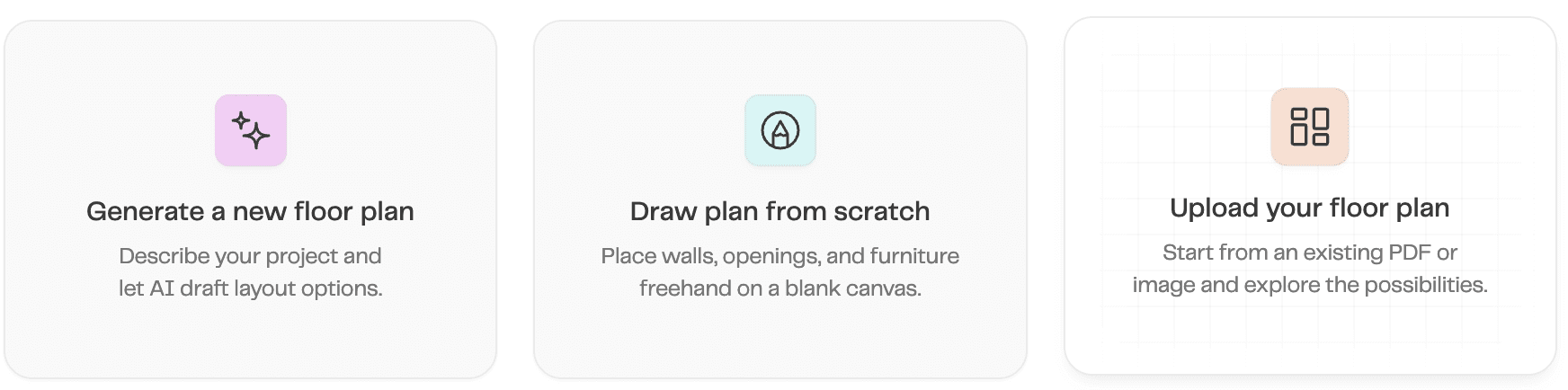
Choose how to start: generate a plan, draw it, or upload an existing plan.
Source: official Maket tutorialDesign a conceptual contemporary two-storey villa on a rectangular 20m x 30m plot (600 sqm plot, not total building area). Keep legal setbacks as user-supplied; do not assume setbacks or buildable footprint. Include five bedrooms with ensuite where feasible, separate guest majlis and entrance, double-height family living room with first-floor void, dining area, modern kitchen, two-car parking, guest bathroom, laundry and maid room if feasible. Reserve a generous backyard zone for conceptual infinity-edge pool, outdoor BBQ area, planter boxes and shaded seating. Prioritize privacy, daylight, circulation, stairs and practical room proportions. Return schematic floor plan options with dimensions for review, not permit-ready construction drawings.
Step 02
Compare and refine one change at a time
Compare the generated options for privacy, daylight, room proportions, entrances and stair circulation. Use the manual canvas to adjust walls, dimensions, doors, stairs and room types. Check both floors together rather than accepting a pleasing image.
Chat-based AI edits are paid Homeowner or Pro features. Send one of the five requests below at a time, inspect the result and correct it manually when needed. Confirm door swings, wall dimensions and stair alignment after every edit. The double-height void must also be explicitly made on the upper floor in Coohom.
See the real workflow
Images from official software tutorials show different example projects, not a single villa we created. Interfaces and availability may vary by account. Tap an image to open it full size.
 Tap to open and zoom
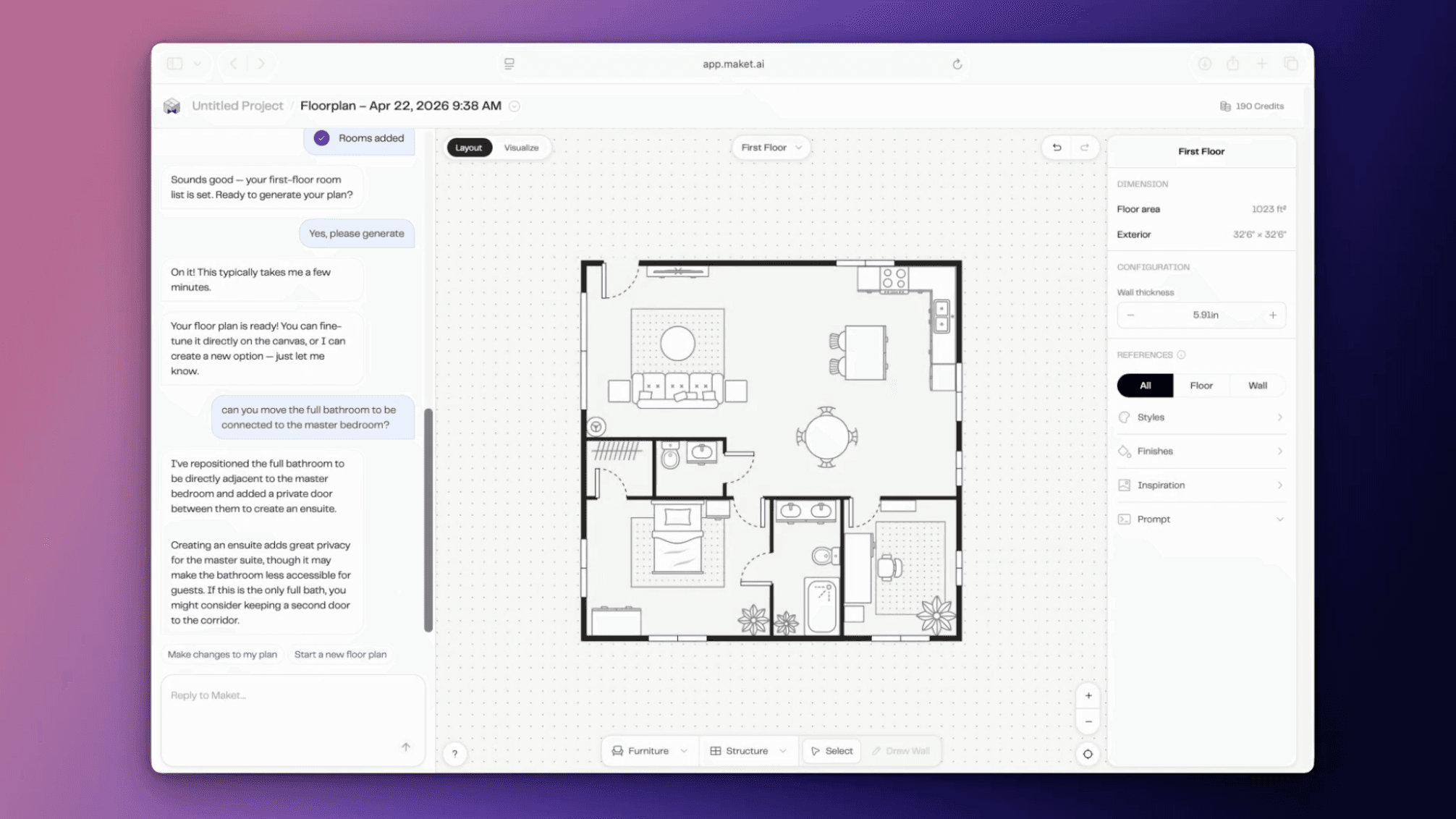
An official example of editing a floor plan with chat. Review the result before continuing.
Source: official Maket tutorialMove the guest majlis closer to the front entrance and keep it separate from the family area.
Increase the family living room size without reducing bedroom access.
Reserve an open-to-below double-height void above the family living area; check both floors.
Add a bedroom if there is enough buildable area; keep hallways and circulation practical.
Reserve outdoor space for a pool, BBQ terrace, and planter boxes; keep it outside the main building footprint.
Step 03
Export and prepare the handoff
Maket Free includes 30 one-time credits, single-floor generation, an editor and renders. It allows link sharing, not downloadable exports. At the 27 October 2026 price check, Homeowner is US$20 per month with 300 monthly credits, multi-floor generation, AI edits, plan upload and PDF/DXF/render exports. This complete two-storey workflow is not promised within the free allowance.
On a plan with exports, download the PDF and keep one clearly named file or page for each floor. If Coohom needs an image, render that PDF locally or take a clean screenshot of your own exported plan, then save PNG or JPG. Crop away menus, preserve all walls and add a known reference dimension such as a 4.0 m wall. This is a PDF-to-image preparation step, not a claimed direct Maket PNG export.
The safest handoff is a clear PDF or plan image with a known length. Maket also exports DXF, but Coohom CAD import requirements target AutoCAD-generated DWG/DXF. Do not assume Maket DXF imports perfectly. Plan recognition creates a separate Coohom model that needs checking; it does not transfer the Maket 3D model.
Watch the export and sharing workflow
An official Maket video instead of an unverified export-button screenshot. The YouTube player loads only after you press play; your interface may differ.
Step 04
Import the plans into Coohom
Register on the official Coohom site. In the workspace choose House Design or New House Design Project where available. It combines exterior and interior work in one project. If that entry is missing in your plan or version, start a normal new floor-plan project and use the accessible 3D tools instead.
Choose Upload Floor Plan in the workspace or Import 2D Drawing inside the editor. Upload the ground-floor PDF, PNG or JPG first. Set scale with one known measured length, preferably the 4.0 m reference, or a verified building area. Check recognition range, walls, doors and windows, then click Import and switch to 3D. Fix misrecognized geometry manually.
Confirm the ground-floor height before creating the upper floor. New Upper Floor is in the floor planner right panel; set its name and placement, optionally copying the ground-floor structure. Import the upper plan separately. For multiple images use Upload Pics in the import panel, check each floor assignment and ruler, then Auto Generate Floorplan and Import. Show All Floors in Floor Navigation to verify alignment. Avoid duplicating an upper floor when import already adds one; use Match Floor when replacing a plan.
See the real workflow
Images from official software tutorials show different example projects, not a single villa we created. Interfaces and availability may vary by account. Tap an image to open it full size.
 Tap to open and zoom
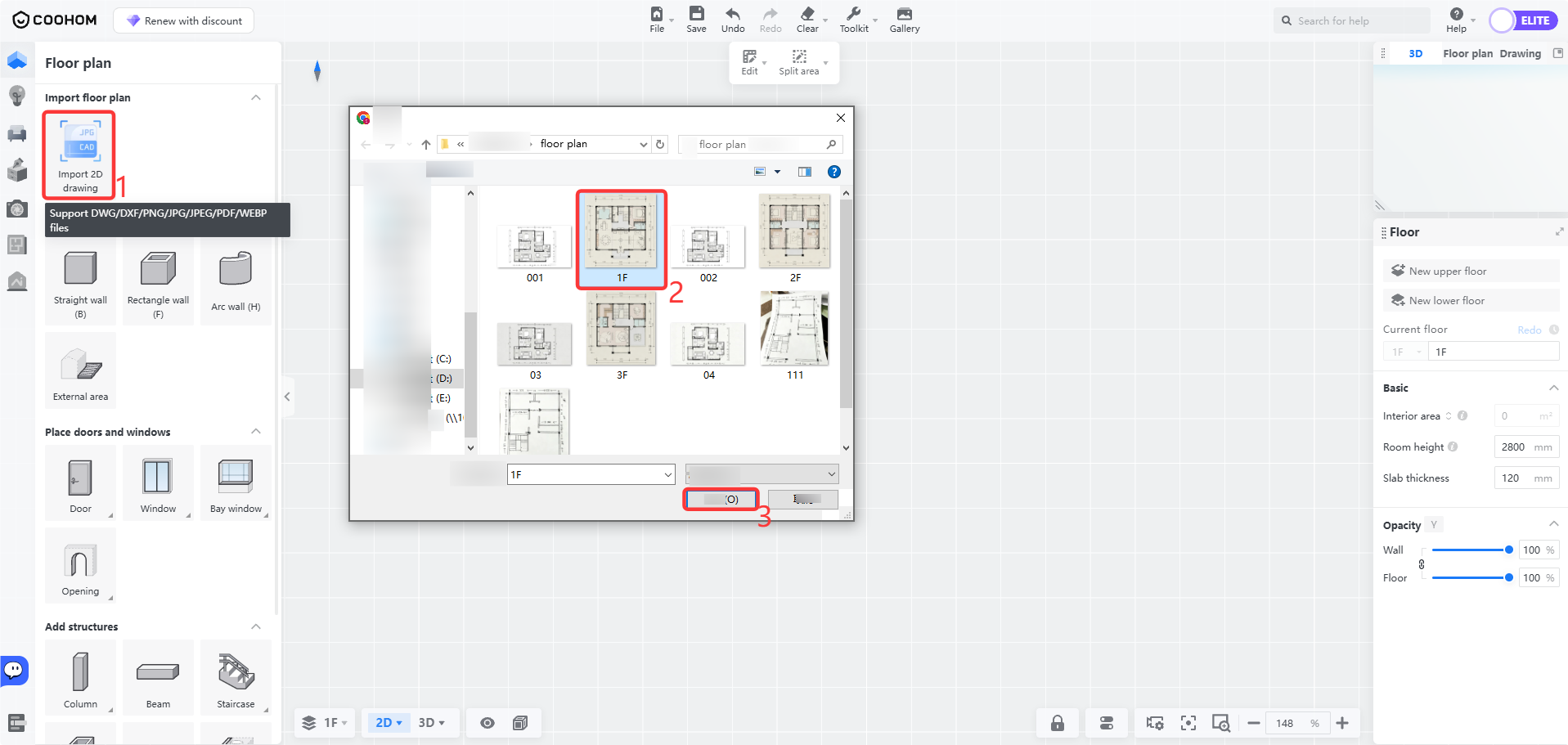
Open Import 2D Drawing and select the plan images you want to import.
Source: official Coohom tutorial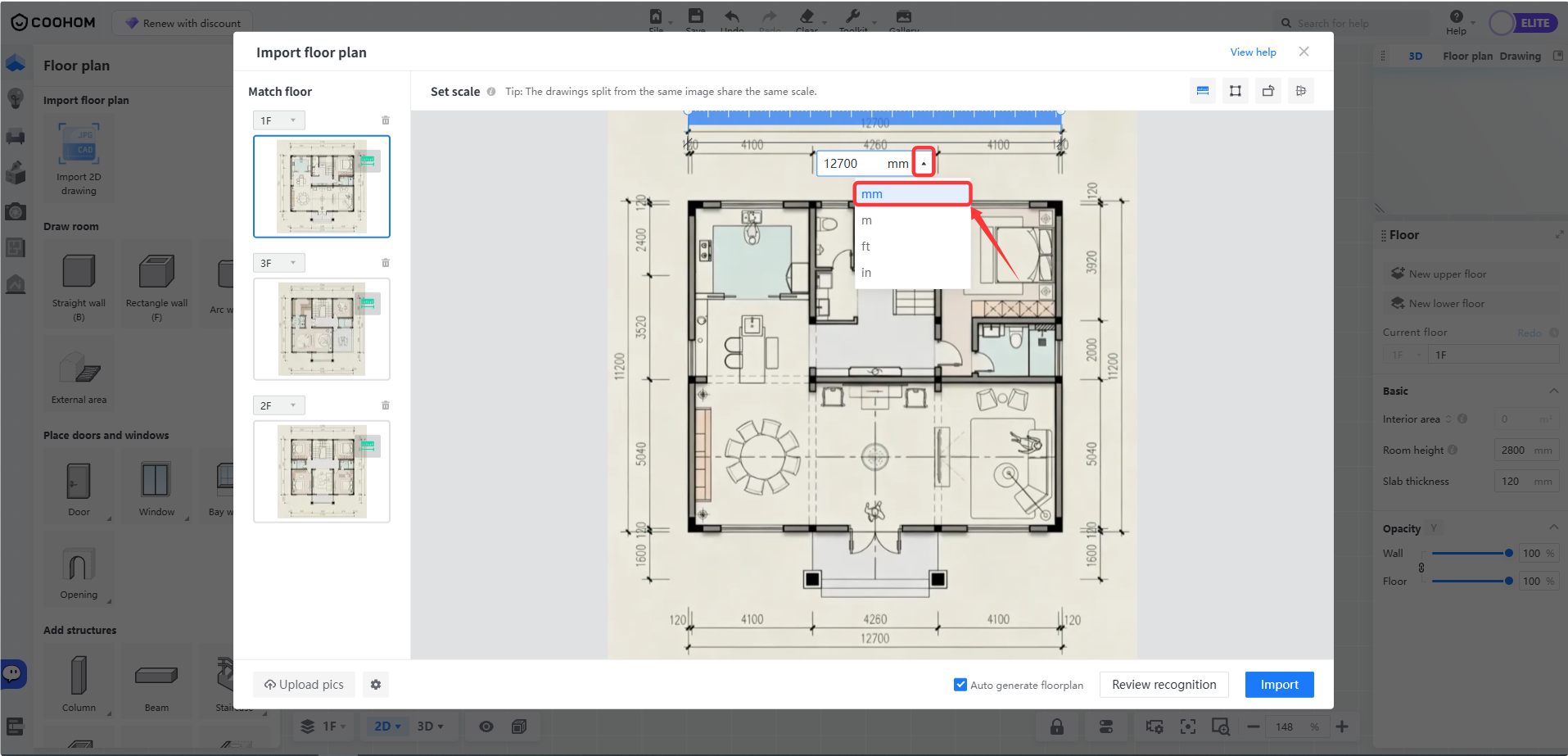 Tap to open and zoom
Set the measurement units and align the ruler with a known dimension before import.
Source: official Coohom tutorial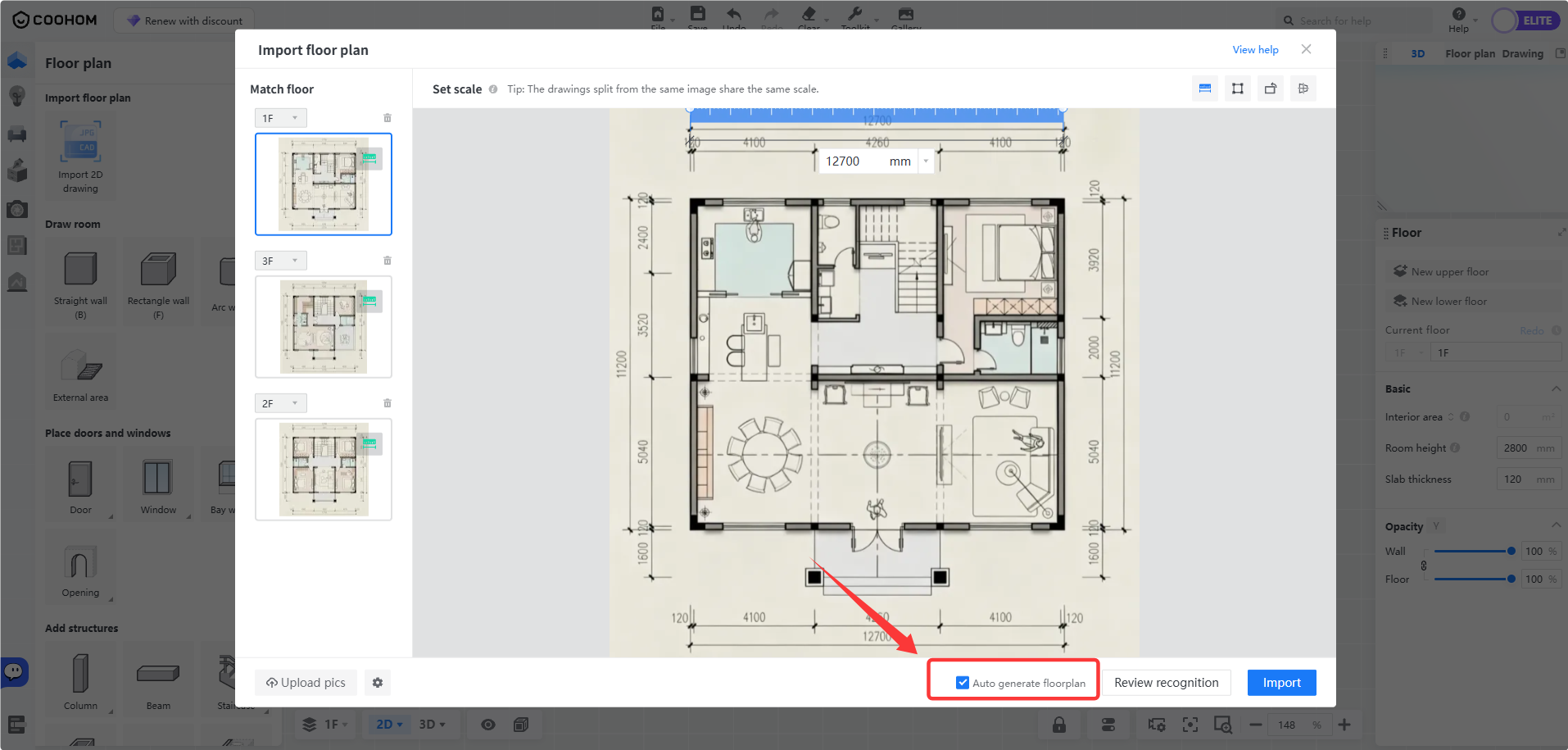 Tap to open and zoom
Enable Auto Generate Floorplan when you want recognition, then select Import and review the geometry.
Source: official Coohom tutorialStep 05
Make a real model void for double height
A double-height living room is not a ceiling texture. On the upper floor, select the slab/floor plan and use Floor Opening to draw a closed outline above the living room, then Finish. Verify in 3D with all floors visible that no upper-floor slab covers that space. The official floor-opening tutorial uses a temporary 1 mm slab setting for its modeling workflow; that is not a buildable slab thickness or engineering specification.
If a ceiling still obstructs the view in House Design, go to 2D, click the room name to show ceiling parameters and set Has Ceiling to No. Removing a ceiling alone is not a substitute for an upper-floor opening. Add stairs on the ground floor and visual safety railings on the upper floor from the model library, then check proportions and access.
Floor heights, slab openings, stairs, railings and load paths require an architect and structural engineer. This guide establishes a conceptual visual model only, not structural safety or approval.
See the real workflow
Images from official software tutorials show different example projects, not a single villa we created. Interfaces and availability may vary by account. Tap an image to open it full size.
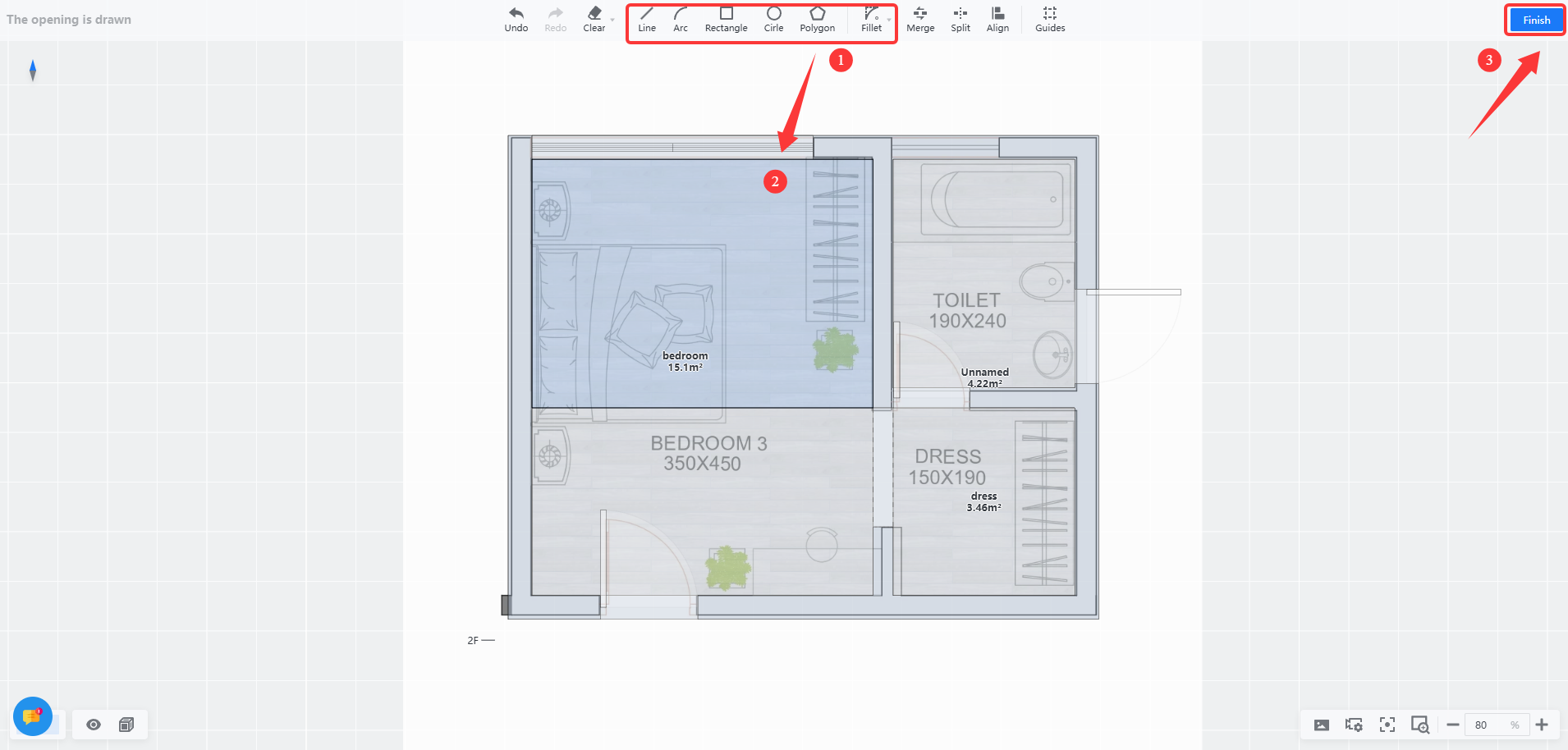 Tap to open and zoom
Draw a closed upper-floor opening, then select Finish. This is not a structural design.
Source: official Coohom tutorial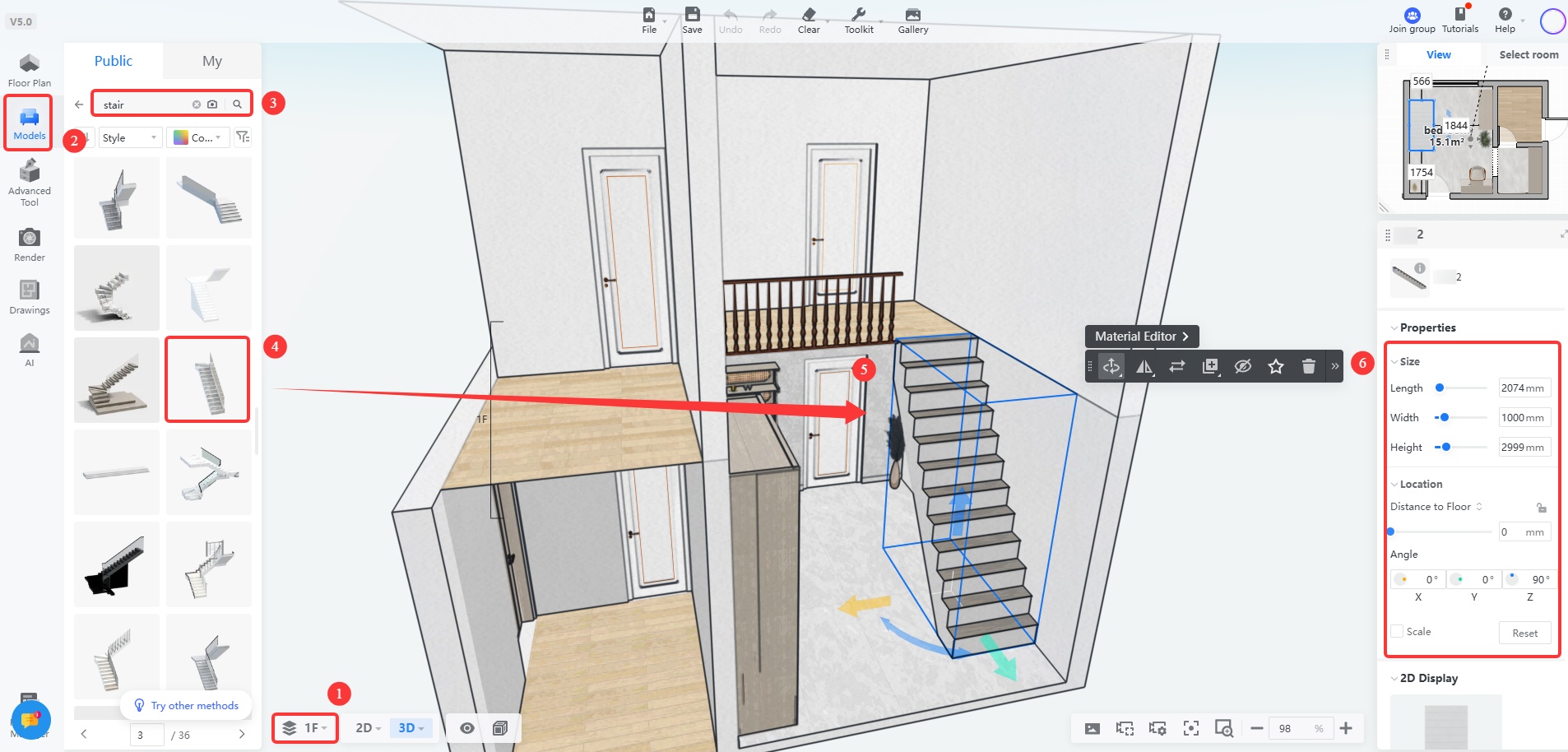 Tap to open and zoom
Place the stairs on the lower floor and check their alignment with the upper-floor opening.
Source: official Coohom tutorialStep 06
Design the facade, interior and garden
In House Design use Material for conceptual stone, travertine or glass finishes. Use Library to place or replace doors and windows, add balcony and shade elements, then adjust dimensions. Click Design Interior to furnish the majlis, dining area, kitchen and bedrooms; click Exterior to return to the facade in the same project.
Define a garden or courtyard ground/slab zone outside the building. In Library search lawn, plants, trees and hardscape; place, copy and adjust models, then Replace Material where needed. Keep circulation, privacy and the preserved outdoor area visible.
For an infinity-edge pool concept, search pool or swimming pool in the library if a suitable model is available. Official guides do not guarantee a one-click parametric infinity pool or an exact prebuilt model. Otherwise use a compatible custom model or represent the reserved pool zone conceptually for the render. A picture proves neither hydraulic design nor structural feasibility.
For the BBQ area and planter boxes, search barbecue grill, outdoor kitchen and planter. Exact models and account access are not guaranteed. Use supported custom model upload when available; the official list includes MAX, RAR, ZIP, FBX and SKP, subject to model requirements. These are model/package formats, not interchangeable floor-plan files.
See the real workflow
Images from official software tutorials show different example projects, not a single villa we created. Interfaces and availability may vary by account. Tap an image to open it full size.
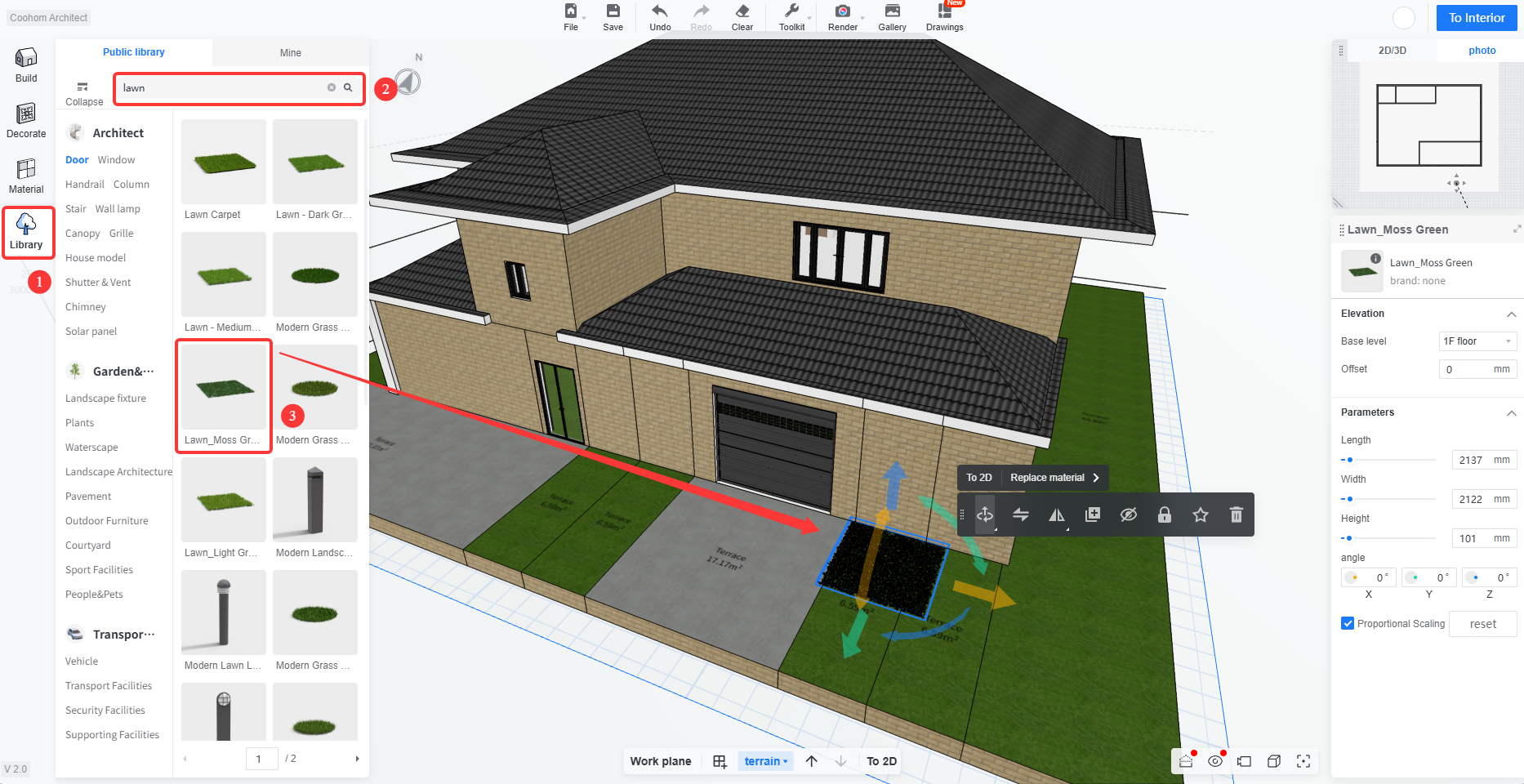 Tap to open and zoom
Search for lawn in the library and place it in the garden area.
Source: official Coohom tutorial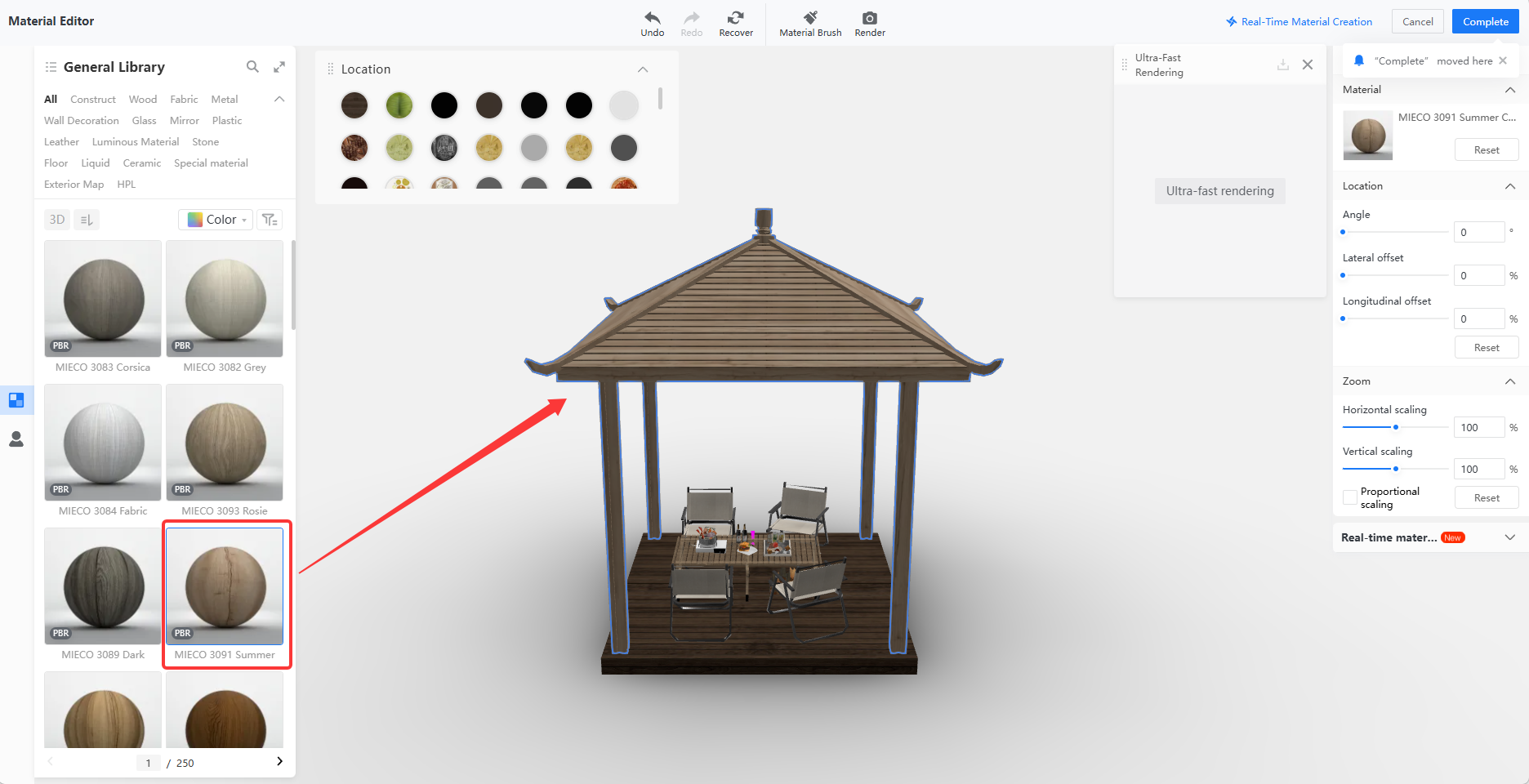 Tap to open and zoom
Select a model, choose Replace Material, and apply the material to the intended part.
Source: official Coohom tutorial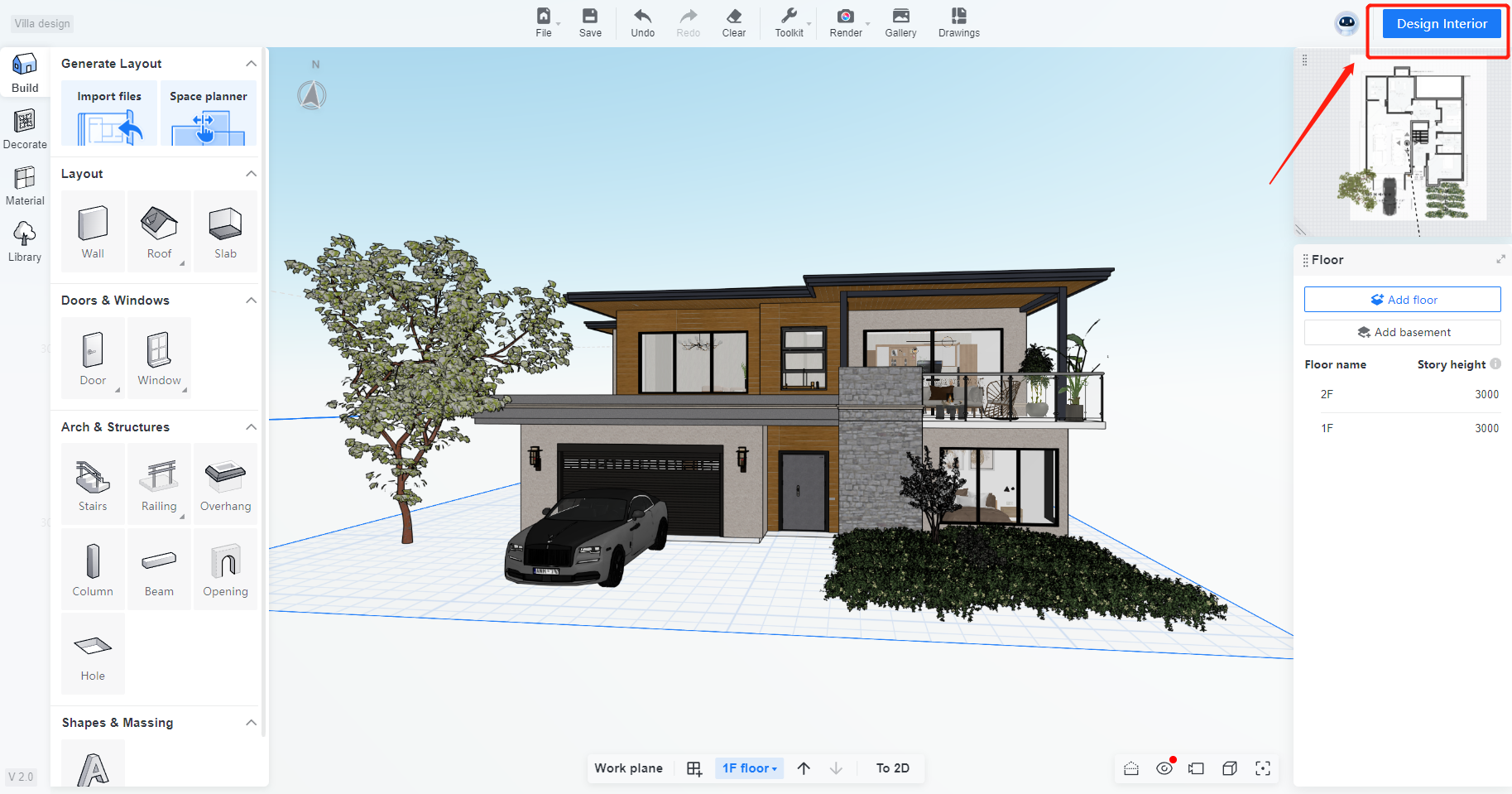 Tap to open and zoom
Choose Design Interior to work on the interior spaces.
Source: official Coohom tutorialThese images demonstrate interiors, materials and the garden. No verified screenshot of a specific infinity-pool, BBQ or planter model is shown; check availability in your library.
Step 07
Render and prepare a walkthrough
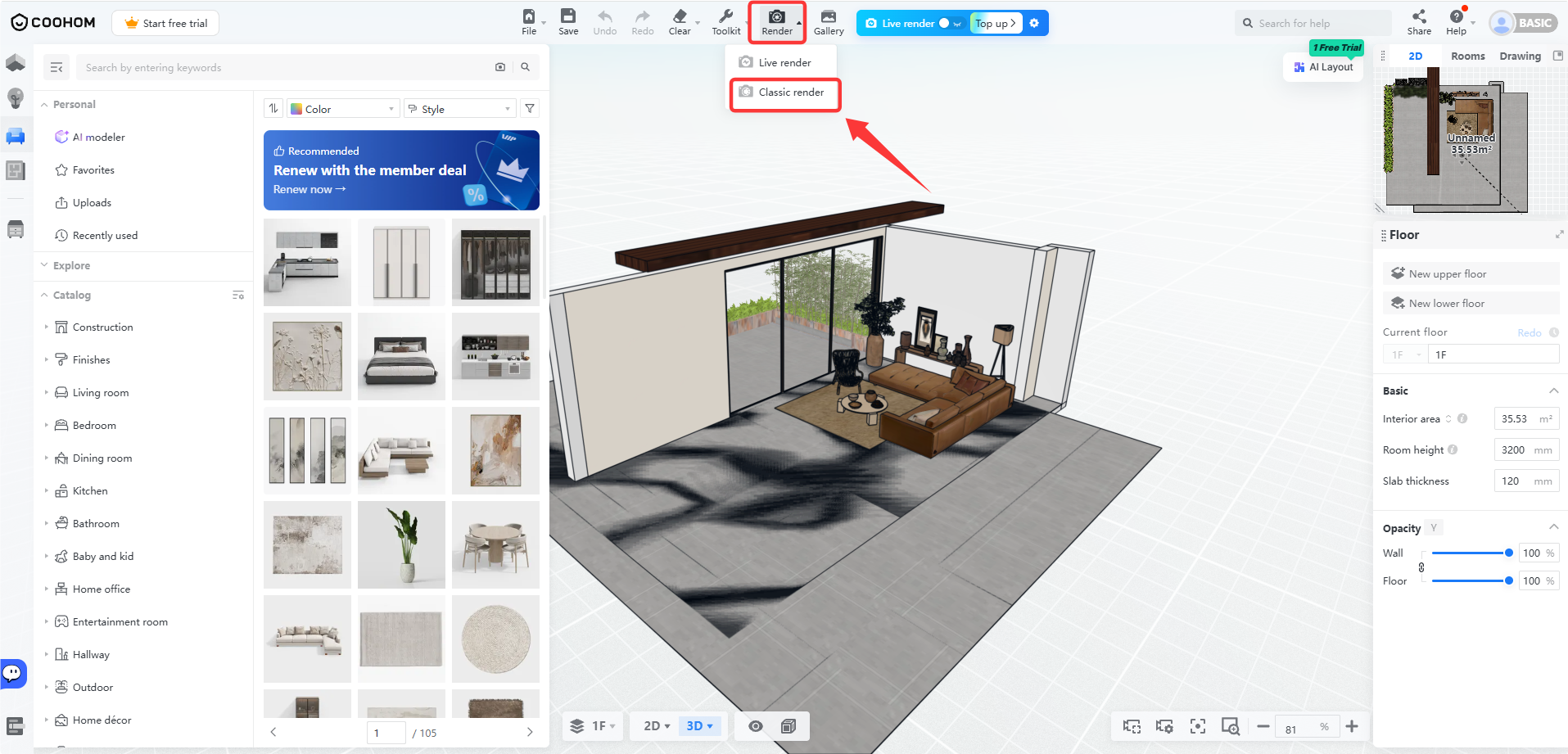
The 14 October 2026 update moves rendering access to the top Render menu. Choose Live Render for a quick preview or Classic Render for a higher-quality offline image. Older walkthrough instructions may show a sidebar entry, and rollout differs between accounts. For the exterior use Architectural or Render Architectural where offered, choose a Scene, adjust Ambient Light and camera, select resolution and render. Start with a 1K test where your account permits it, then save still views of the exterior and interiors in daylight and twilight.
For a 360° view enter the rendering page, select 360° Walkthrough, use Smart Views or adjust the camera manually, set Resolution, Ambient Lights and Environment, then Generate. View it in Gallery and use Share if available. For a linked 720° tour first render several panoramas, open project details, select 720° VR Tour, Generate Light 720° VR Tour, choose the panoramas and Generate. Room closure and panorama names help tour organization.
Coohom free Basic is commonly presented with 3 projects and watermarked 1K images, but our official pricing-page check returned only its cookie notice, so those exact allowances were not independently confirmed on 27 October 2026. Check the current official pricing and your account before promising a free render or tour. No paid Coohom price is quoted here.
See the real workflow
Images from official software tutorials show different example projects, not a single villa we created. Interfaces and availability may vary by account. Tap an image to open it full size.
 Tap to open and zoom
Open the top Render menu and select Classic Render.
Source: official Coohom tutorial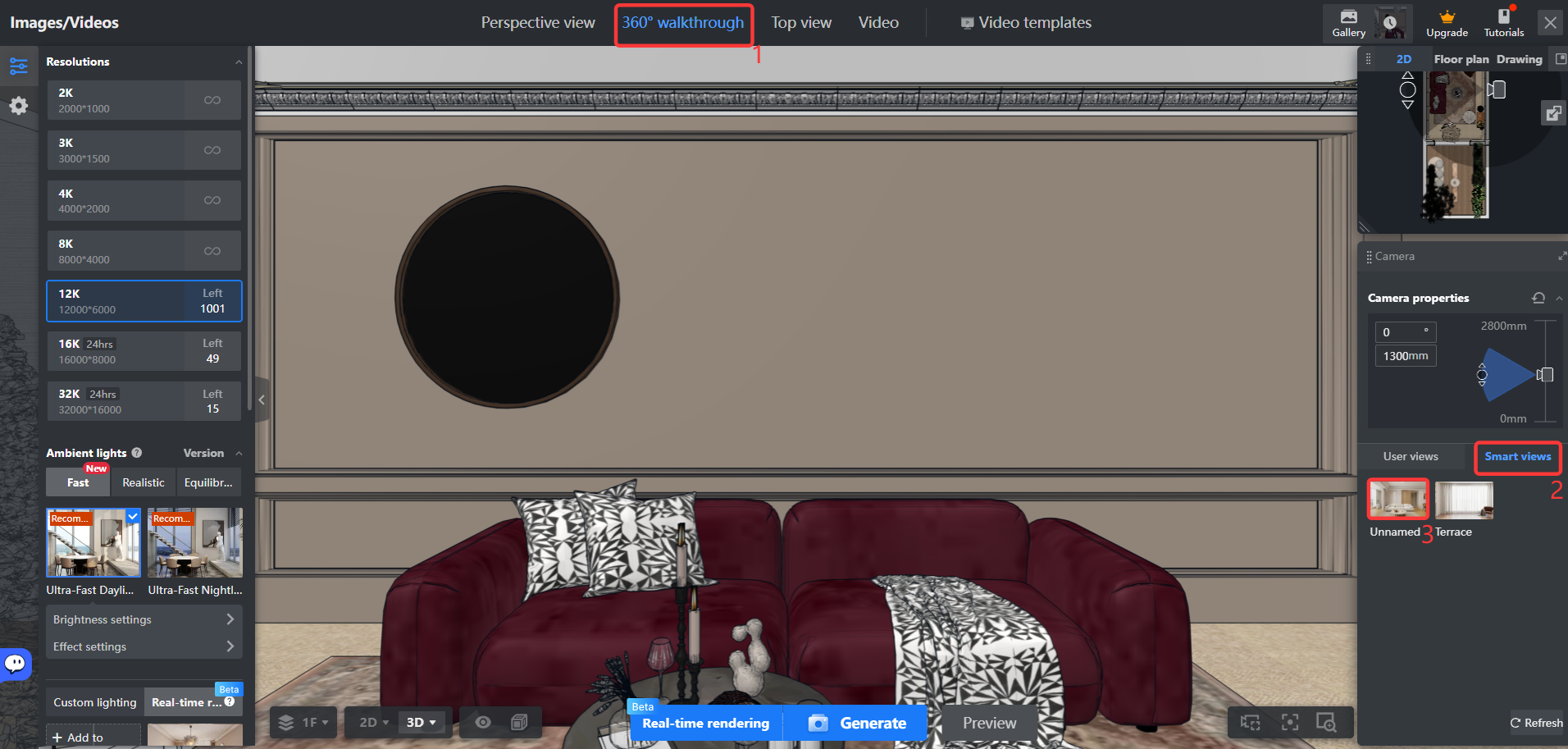 Tap to open and zoom
Select 360° Walkthrough and Smart Views. Older examples may show a different menu location.
Source: official Coohom tutorial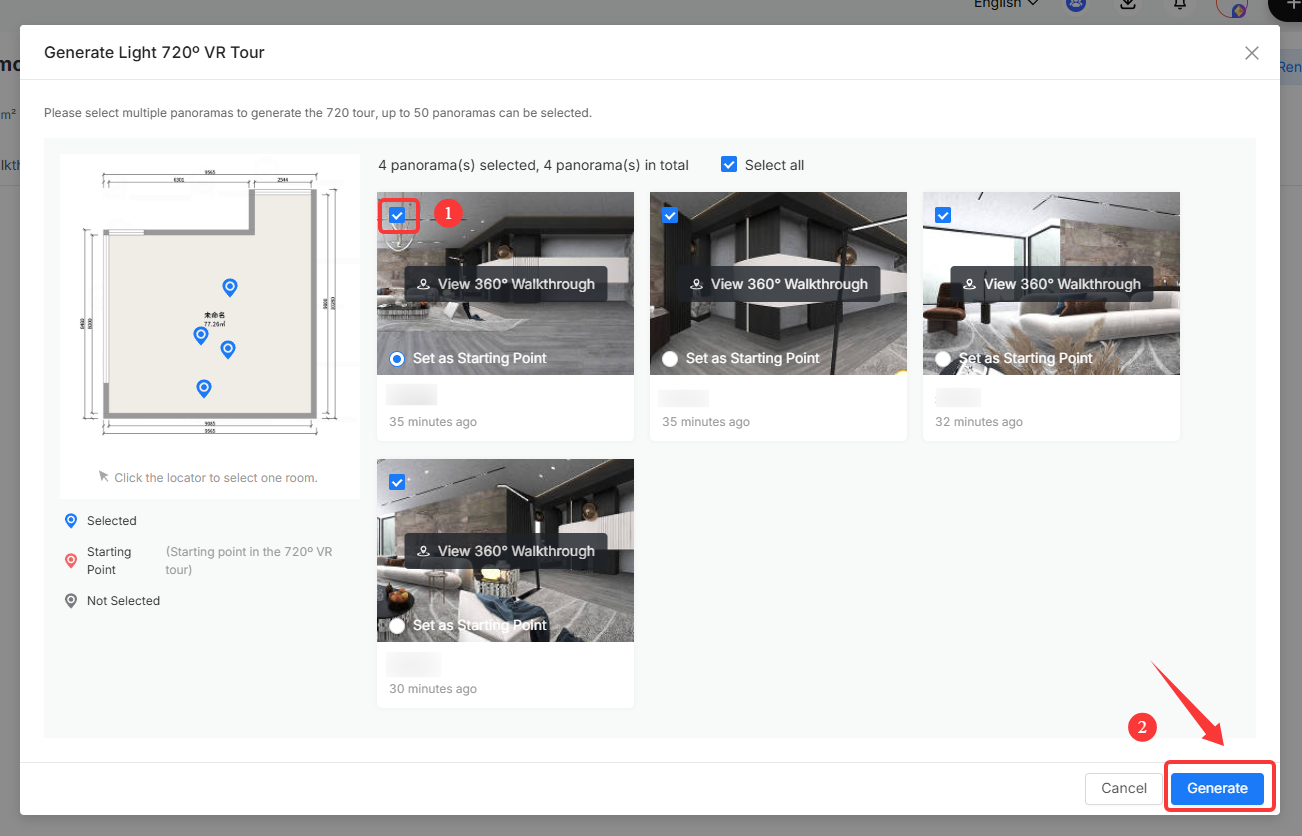 Tap to open and zoom
Select previously rendered panoramas to connect them into a 720° tour.
Source: official Coohom tutorial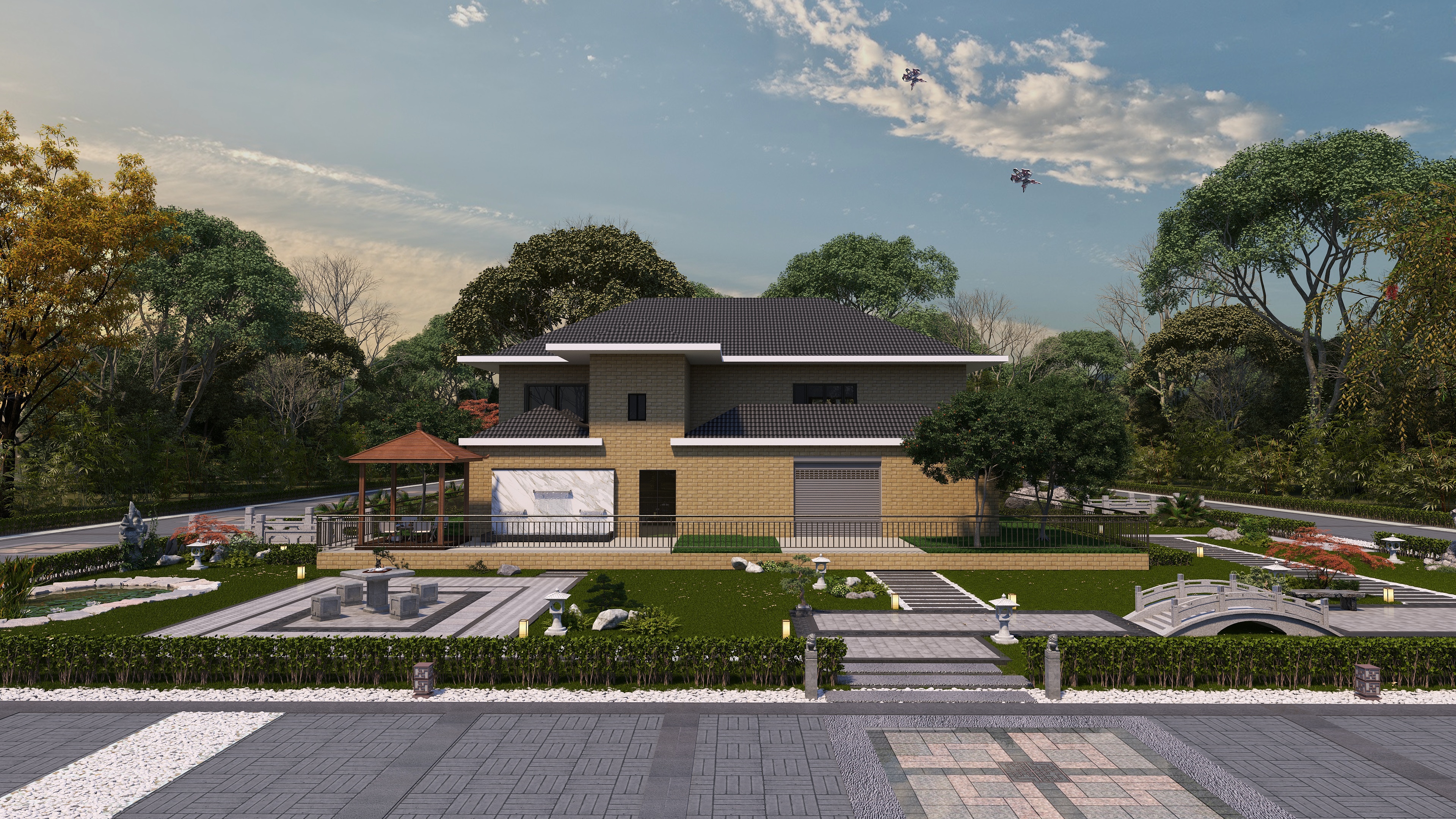 Tap to open and zoom
A finished garden render from the official Coohom tutorial, not the result of this villa brief.
Source: official Coohom tutorialStep 08 · video walkthrough
Show the villa outside and inside
There are two different results: a camera moving through the actual Coohom model, or cinematic AI animation of individual rendered images in Runway. Use the first to explain your layout. Use the second for optional presentation shots, not as proof of dimensions or connections between rooms.
An easy shot list
Exterior → entrance → living room → dining and kitchen → a bedroom → garden. Prepare each view in your design first. Start with short, slow shots and review each one before combining them in your video editor.
This is a suggested sequence, not a demonstrated single continuous route. The official Coohom tutorial below shows interiors. An exterior view needs all visible geometry modeled and a working camera path; use separate exterior and interior shots when needed.
Model-based tour: Coohom Roaming Video
Start with a finished model, not a still image. Build every area you plan to show.
Total clips are limited to 30 seconds. Video tokens are required; Basic has none by default.
Real screenshots from the official tutorial, showing vendor example projects, not a villa we produced. Tap an image to open it full size. Menu locations and access may vary by account.
Action 1
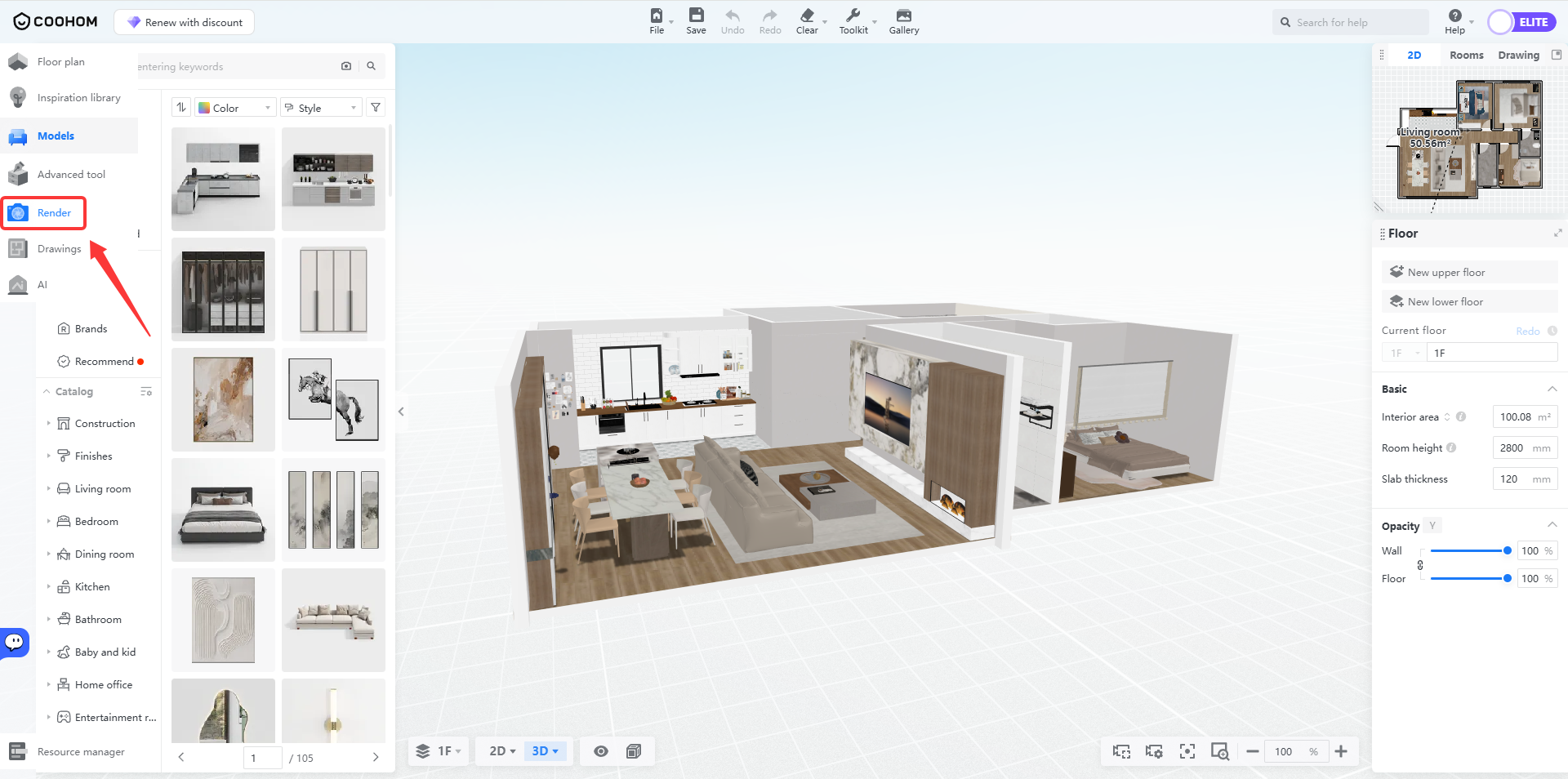 Tap to open and zoom
Open the project and select Render.
Source: official Coohom tutorialAction 2
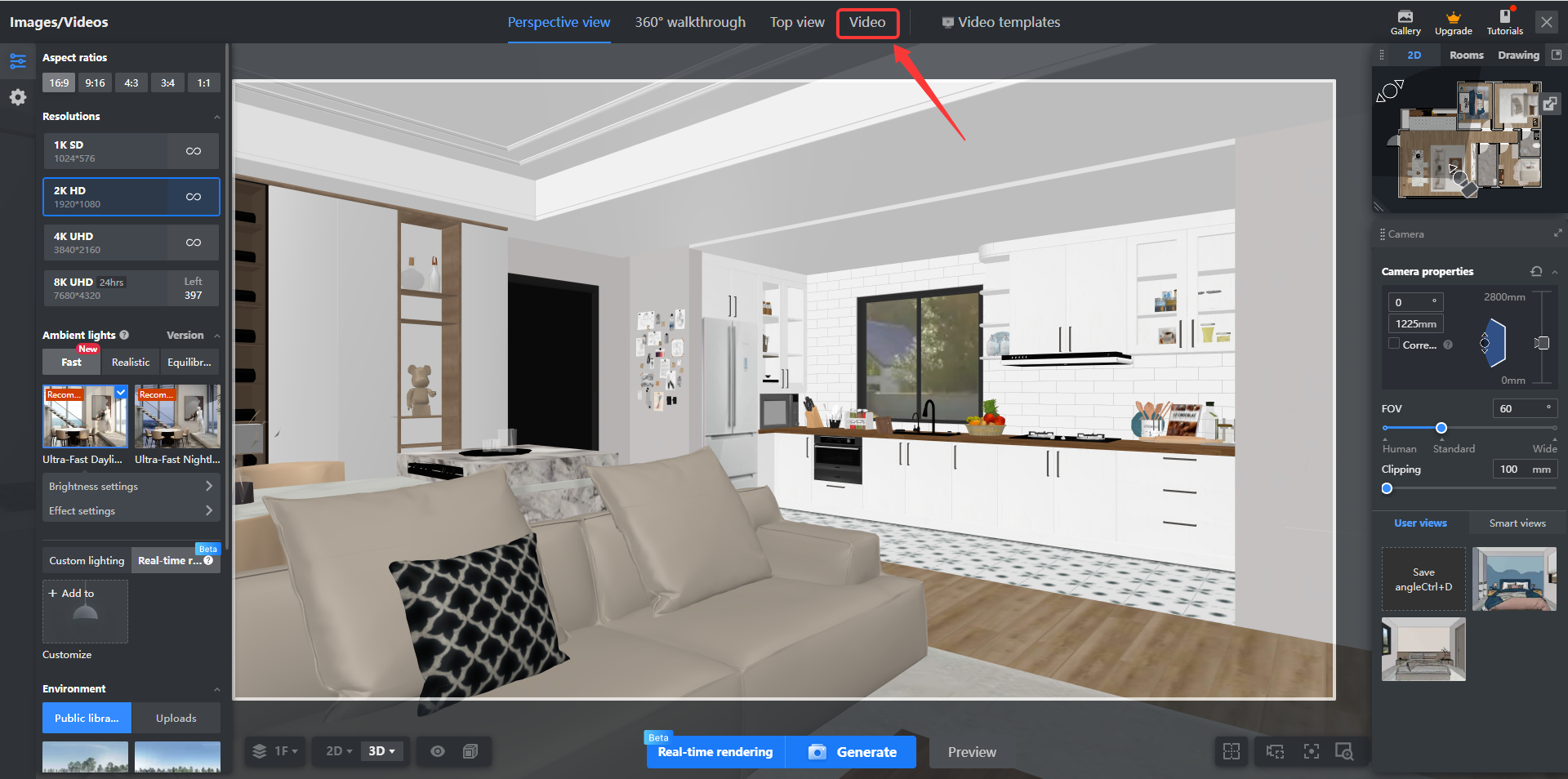 Tap to open and zoom
Choose Video.
Source: official Coohom tutorialAction 3
 Tap to open and zoom
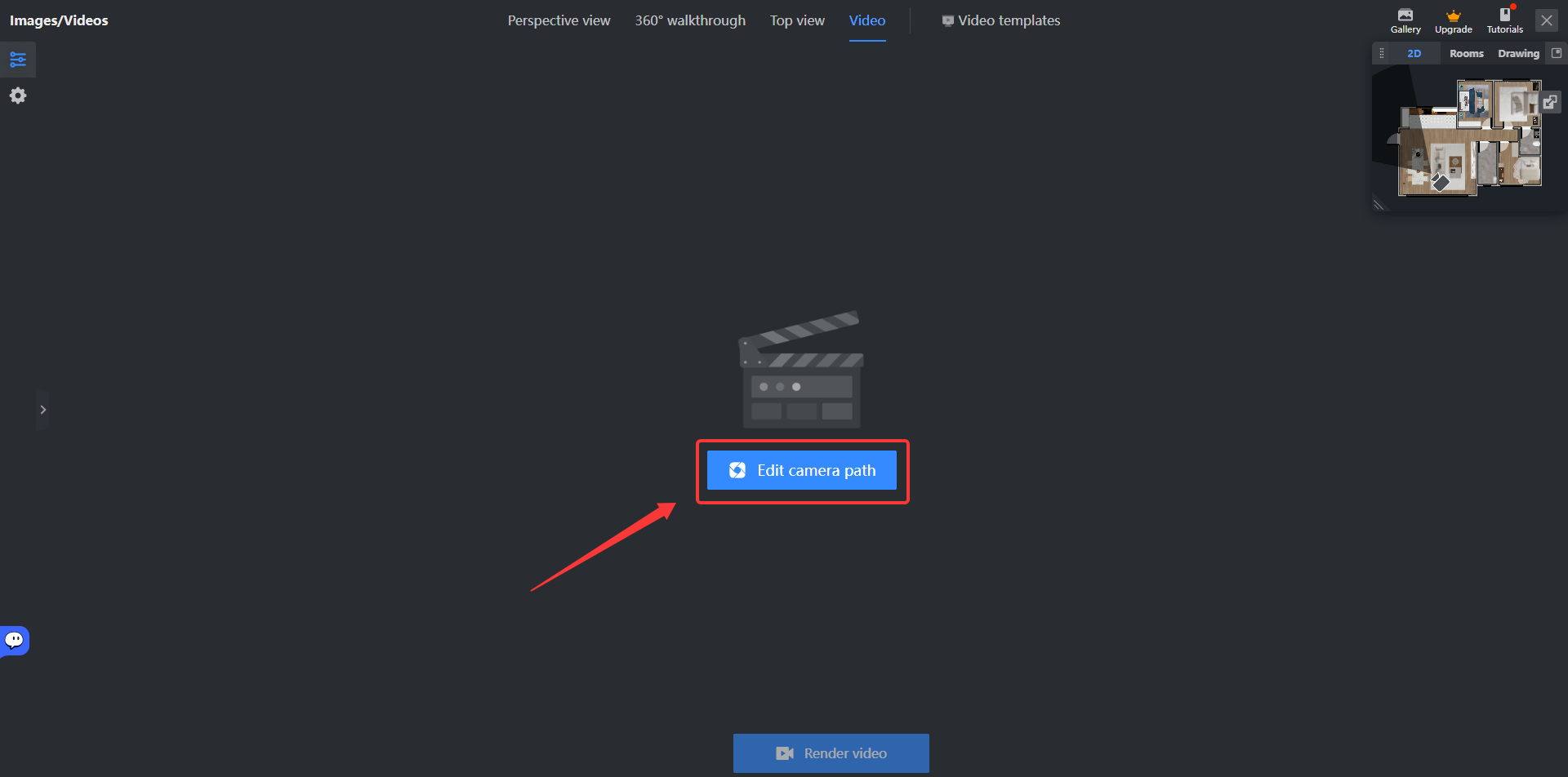
Open Edit Camera Path and place the camera route.
Source: official Coohom tutorialAction 4
 Tap to open and zoom
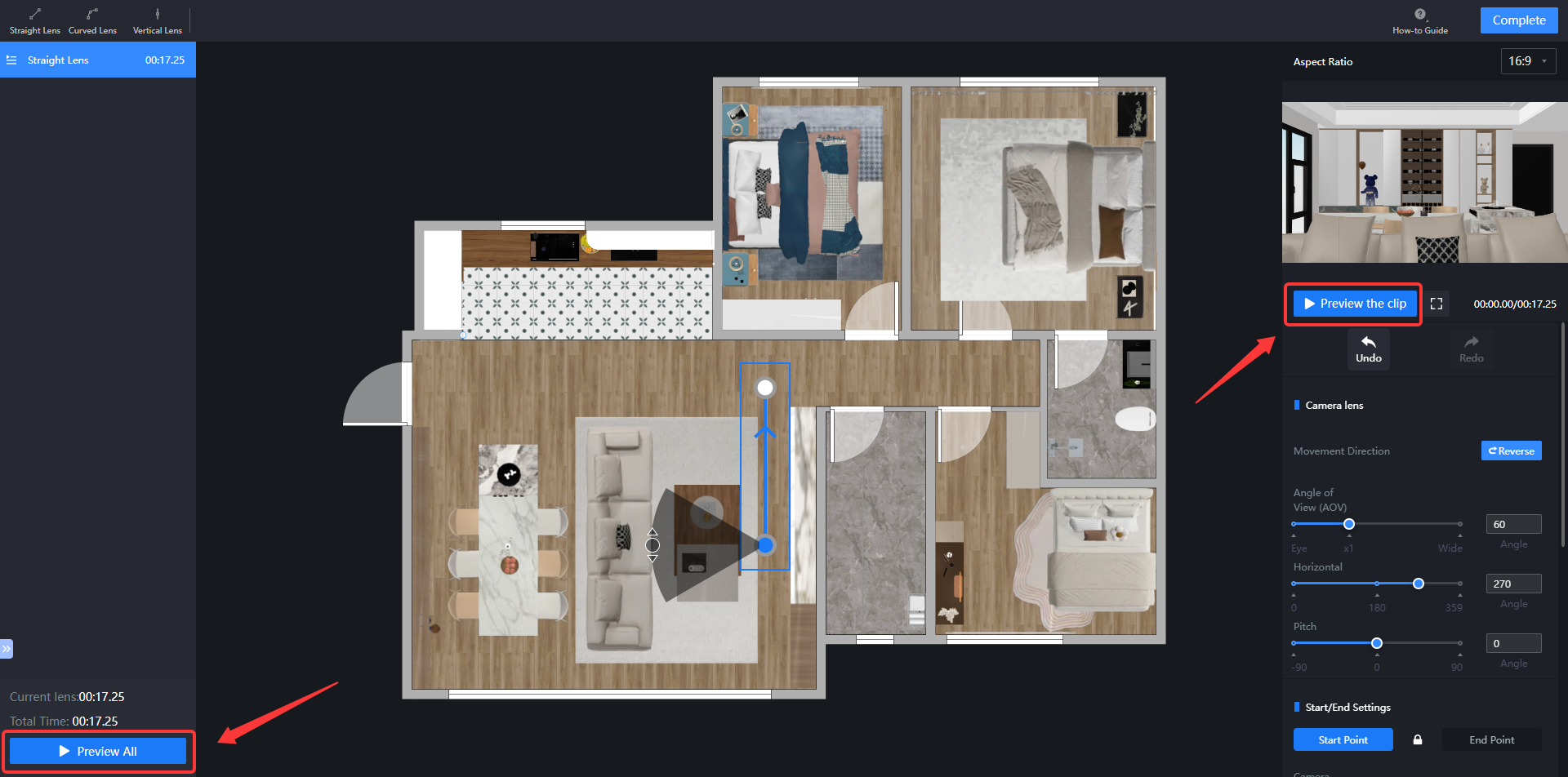
Preview All and check that the route avoids walls.
Source: official Coohom tutorialAction 5
 Tap to open and zoom
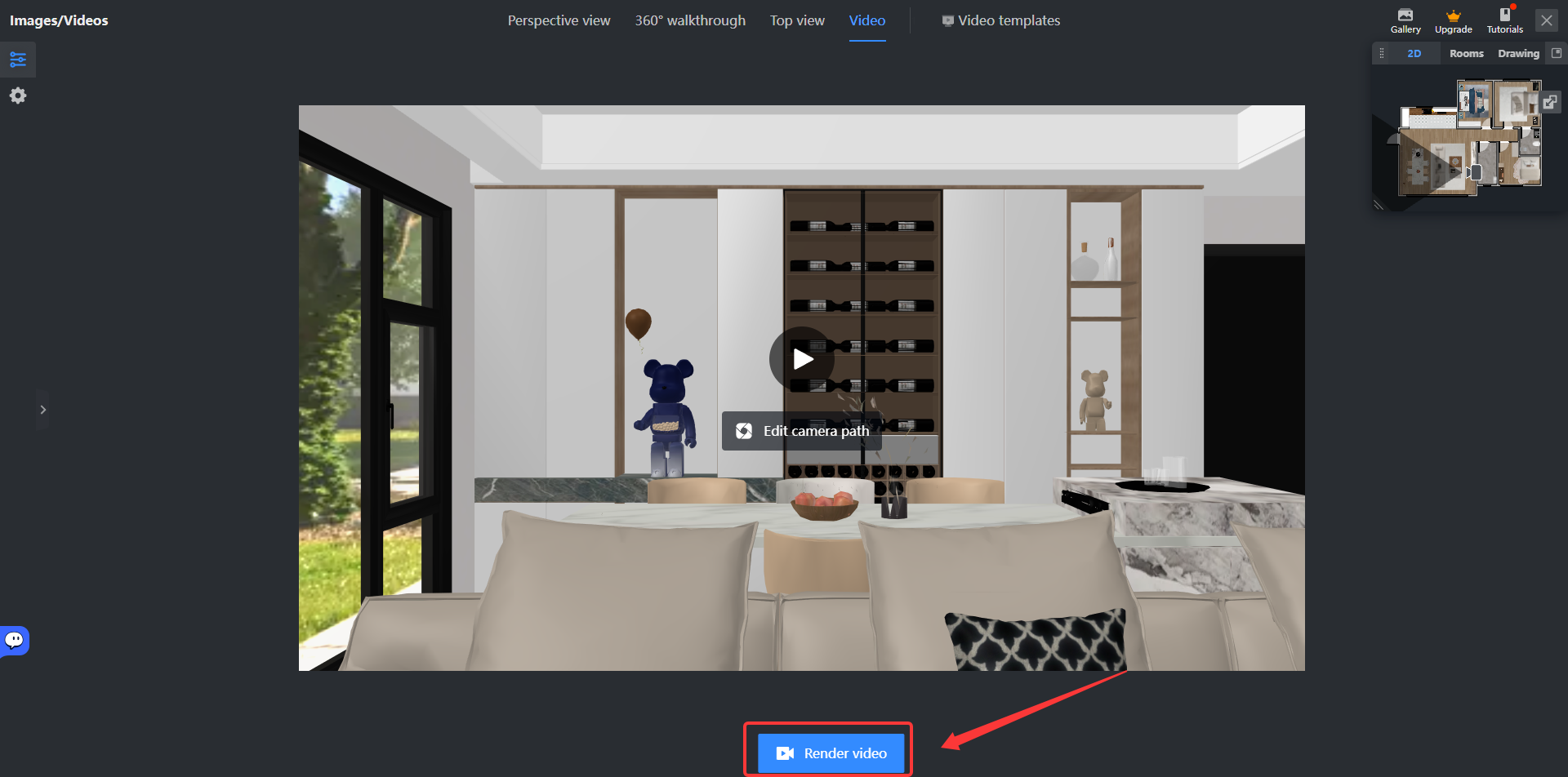
Select Complete, then Render Video.
Source: official Coohom tutorialAction 6
 Tap to open and zoom
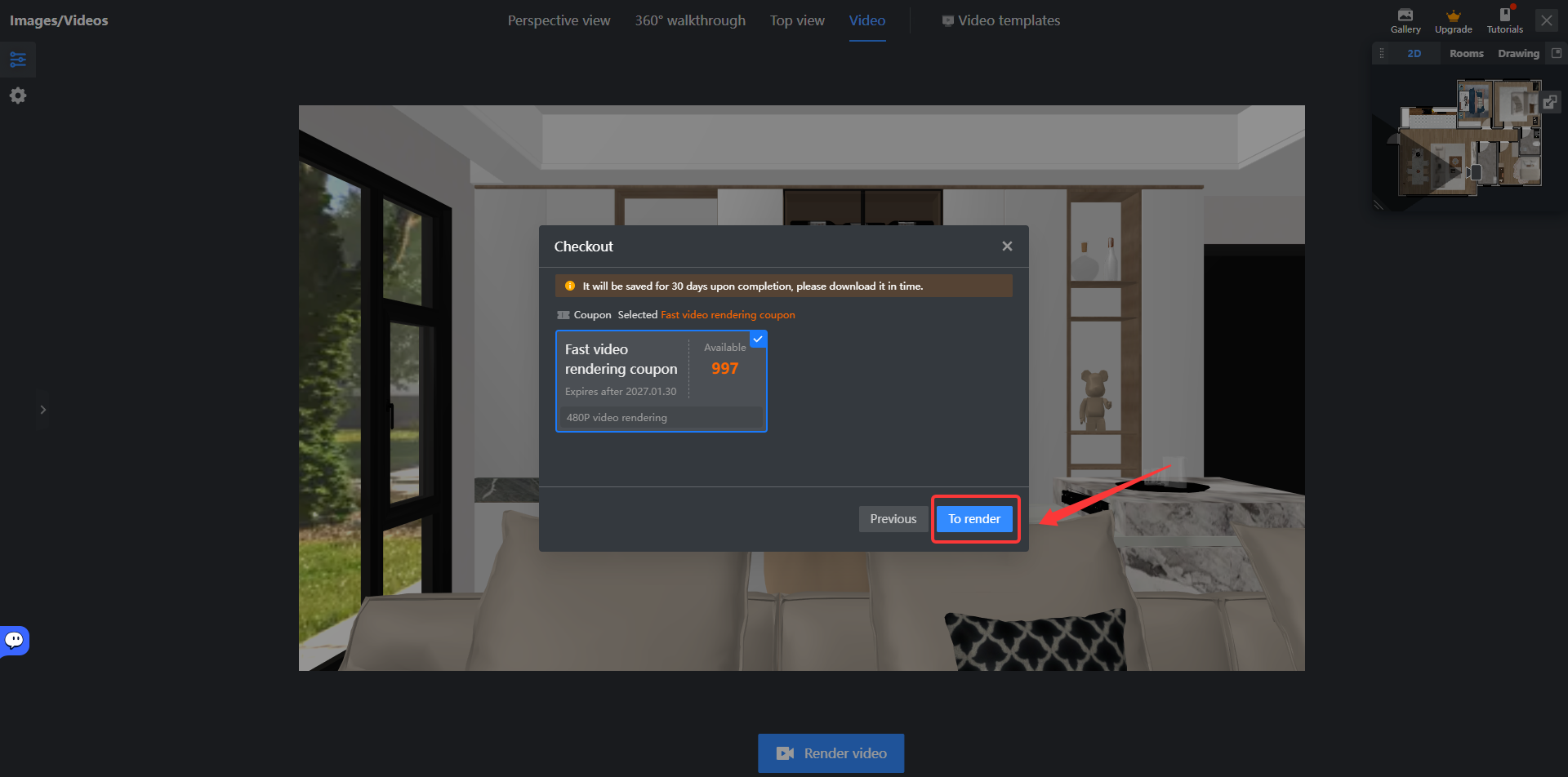
Review token cost before To Render.
Source: official Coohom tutorial
Extra tool: Runway to animate villa images
Prepare exterior, entrance and room renders. Animate each separately, then assemble them in a video editor.
Requires Standard or higher plus credits. AI animation may change details; this is not a precise 3D tour.
Real screenshots from the official tutorial, showing vendor example projects, not a villa we produced. Tap an image to open it full size. Menu locations and access may vary by account.
Export clear stills from your own Coohom project first: one exterior image, one entrance view and one image per room. Upload only images you are authorized to use. Make one clip per image; Runway can invent unseen details, so do not request a tour through rooms that are absent from the image.
Action 1
Tap to open and zoom
Choose Video, Gen-4.5, then upload a Start Frame.
Source: official Runway tutorialAction 2
Tap to open and zoom
Describe gentle motion, set duration and ratio, then Generate.
Source: official Runway tutorialAction 3
Tap to open and zoom
Review and download suitable shots.
Source: official Runway tutorial
Simple motion prompts to try
Original suggestions, not verified generated results. A prompt does not guarantee that geometry or details will stay unchanged. Review doors, windows, furniture and room layout in every clip; discard misleading outputs.
The camera slowly dollies toward the villa entrance at eye level. Smooth architectural filming, gentle motion.
The camera slowly glides forward through the living room at eye level, revealing the seating area. Gentle architectural filming.
Documentation checked on 27 October 2026. Check the current account limits and generation cost before rendering. No subscription or generation purchase is included with this free guide.
Record the real workflow for your Reel
Suggested shot order, not a recorded demonstration. Use only your own authorized photos and recordings. No fabricated app screenshots or generated results are shown here.
- 01An empty plot as a clearly labeled schematic illustration, or your own authorized photo.
- 02Maket guided requirements and the priorities brief.
- 03The actual generated 2D floor plans.
- 04A real edit to the majlis or living room, with the result reviewed.
- 05Your PDF or plan image imported into Coohom.
- 06The checked 3D model and a double-height cutaway.
- 07Interior views, the clearly labeled infinity-pool concept and the garden.
- 08The ending still or tour and the guide link. Add real images or screen recordings later.
Questions before you start
How do I make a video tour?
Coohom Roaming Video moves a camera through the modeled project and needs video tokens. Prepare the spaces, edit the camera path and preview it before rendering. Runway Gen-4.5 is an optional paid tool for animating individual rendered images; it may invent details and does not prove room connections or accurate geometry. Make exterior and interior clips separately when needed.
Is the whole workflow free?
The guide is free. Maket has 30 one-time free credits and single-floor generation, but multi-floor generation, AI edits and downloadable PDF/DXF exports require a paid plan. Check Coohom pricing and your account for current project, rendering and tour limits.
Is this construction-ready?
No. These are concept plans and presentation models, not permit-ready construction drawings. An architect and engineers must check local rules, setbacks, structure, services and approvals.
Can I upload an existing plan?
Maket plan upload is a paid feature. Coohom supports plan images and PDF through its import workflow. Use your own authorized plan, set scale, and review recognition instead of assuming an exact reproduction.
Can I design multiple floors?
Maket multi-floor generation needs Homeowner or higher. Coohom documents New Upper Floor and multiple-image imports. Check scale, alignment, height and floor openings across both storeys.
Does Coohom automatically preserve the Maket 3D model?
No. This route transfers a plan PDF or image, not the Maket model. Recognition builds separate geometry in Coohom and needs manual cleanup. Furniture, materials and outdoor details must be checked or recreated.
Can this create a real infinity-edge pool?
You can illustrate a pool concept with available or custom models. Exact library assets are not guaranteed. Structural design, waterproofing, overflow, hydraulics and site feasibility must be handled by qualified professionals.
Can I use a phone?
You can visit the sites in a browser, but a desktop or laptop is recommended for detailed drawing, scale checking, floor openings and rendering controls. Mobile feature availability depends on the tool and account.
Is 600 sqm the floor area?
No. In this example 20 × 30 m is the plot area. The footprint and total indoor floor area are separate inputs, constrained by local rules, setbacks and design review. Five bedrooms are a request, not a verified fit.
Official source notes
Checked on 27 October 2026. Interfaces and plans can change. Coohom pricing allowances could not be independently read from the pricing page; confirm them in your account.
- [1] Maket
- [2] Maket guided workflow
- [3] Maket pricing
- [4] Coohom
- [5] Coohom pricing
- [6] Image and PDF import
- [7] Multiple floors and openings
- [8] Multiple floor images
- [9] House Design
- [10] Exterior facade
- [11] Ceiling removal
- [12] Garden and courtyard
- [13] Supported imports
- [14] Rendering access update
- [15] 360° walkthrough
- [16] 720° VR tour
- [17] Coohom Roaming Video
- [18] Runway Gen-4.5 image-to-video